
Keeping your location details up to date is crucial for ensuring that your customers have accurate information about your gym in gym communications. Follow these steps to update your location information:
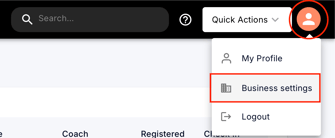
Step 1: Navigate to Business Settings
- Log in to your GymOwners.com account.
- In the top-right corner of the navigation, click on the person icon.
- From the dropdown menu, select Business Settings.
Step 2: Access Location Settings
- Within Business Settings, click on Locations.
- Find the location you want to update and click Edit.

Step 3: Update Location Information
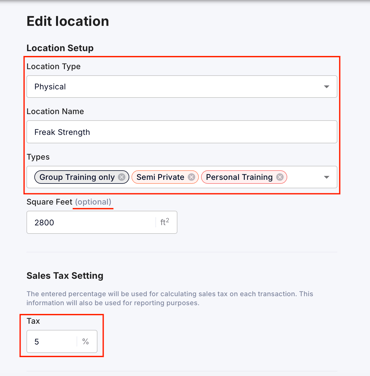
Once the Edit Location page opens, you'll need to fill in the following information:
- Location Type: Select the appropriate type (e.g., Physical).
- Location Name: Enter the name of your gym (e.g., Freak Strength).
- Types: Multi-select the type of services you offer.
- Square Feet: Optionally, input the size of your facility in square feet (e.g., 2800 ft²).
Step 4: Configure Sales Tax Settings
- Tax: Important: Do you collect sales tax on any transactions? If so, enter the applicable sales tax rate (e.g., 5%).
- Note: GymOwners.com allows you to toggle sales tax on and off for certain plans or transactions. The system will only increase the amount passed on to your client by the sales tax percentage and show this in your reporting. You are responsible for all tax filings.
- Please consult your tax advisor to ensure the correct rate is being applied.
Step 5: Enter Physical Location Details
- Address: Input your gym’s address. We will auto-complete the rest of this section as
you start typing. - City: Enter the city
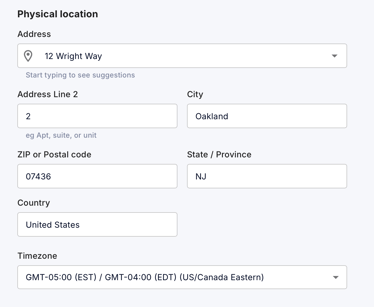
- ZIP or Postal Code: Fill in the postal code
- State/Province: Select the state
- Country: Confirm the country
Step 6: Verify Your Timezone
- Timezone: Verify and select the correct timezone (e.g., GMT-05:00 (EST) / GMT-04:00 (EDT) (US/Canada Eastern)).
Important: Setting the correct timezone is crucial for scheduling and ensuring your appointments and classes are displayed accurately.
Step 7: Add Contact Information
- Customer Service Phone Number: Enter your customer service phone number
- Customer Service Email: Provide the email address for customer support
Step 9: Kiosk (optional)
- Note: GymOwners.com Kiosk streamlines check-ins for your members with a customizable check-in page. Members can easily scan their QR code or search their name to check-in for open gym or a session.
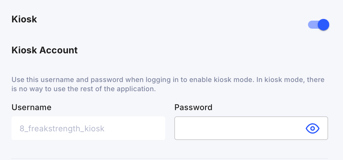
- Toggle on
-
Enter a password for the kiosk user (the kiosk username is automatically created)
-
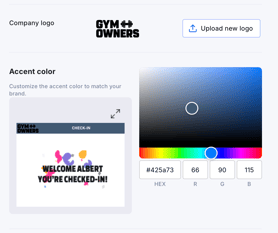
Upload your company logo and select a color (if desired, otherwise, the 'gym owners' logo will be displayed on the kiosk)
-
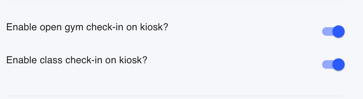
Toggle on the Check-In types that you wish to use on your kiosk
- Enable open gym check-in on kiosk?: for member check-ins into open gym
- Enable class check-in on kiosk?: for member check-ins into a class/session
-
Or toggle on both Class and Open Gym check ins: if you wish to allow member to check-in both to classes or open gym
Step 9: Save Changes
Once all the information is filled out, click Save changes in the top-right corner.