Follow these steps to add membership plans in GymOwners.com, making it easy for gym owners to efficiently manage their client memberships.
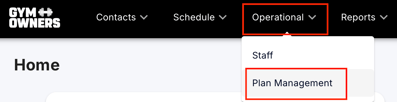
Step 1: Navigate to Operational > Plan Management
- Log in to your GymOwners.com account.
- In the top navigation bar, click on Operational.
- From the dropdown menu, select Plan Management.
Step 2: Add a New Plan
- Once you are on the Plan Management page, click on the Add a new plan button.
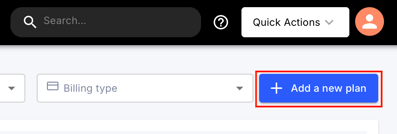
- This will open the Create new plan page, where you can input the plan details.
Step 3: Fill Out Plan Details
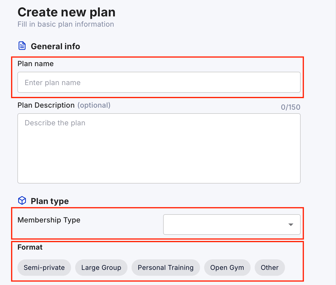
On the Create new plan page, you’ll need to complete the following fields:
- Plan Name
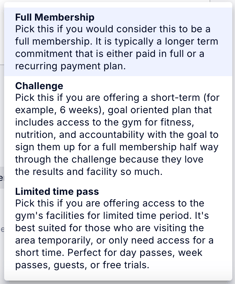
- Membership Type: Full Membership, Challenge, or Limited Time Pass
- Format: Semi-Private, Large Group, Personal Training, Open Gym, or Other
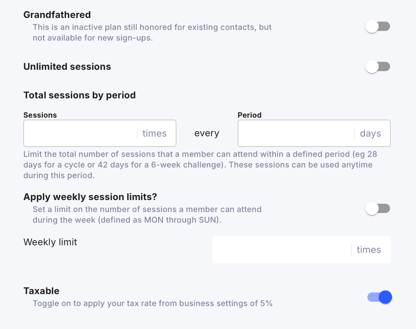
- Grandfathered: Toggle on if this is an inactive plan still honored for existing contacts, but not available for new sign-ups
- Unlimited Sessions: Toggle on if this plan should be able to booked unlimited sessions
- Total sessions by period: Limit the total number of sessions that a member can attend within a defined period. (IE: 12 times every 28 days or 3 times every 7 days)
- Apply weekly sessions limits: Toggle on to set the session limit weekly defined as Monday through Sunday and by entering the weekly limit
- Taxable: toggle on to apply your tax rate from business settings
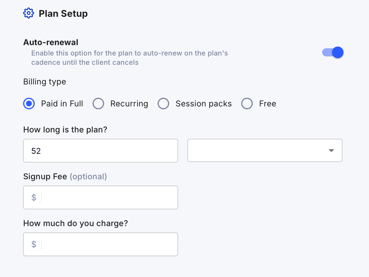
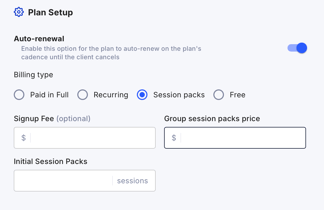
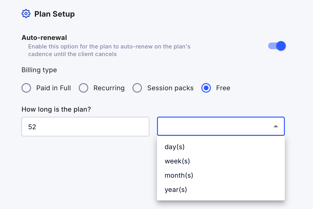
- Auto-renewal: Toggle on to enable this plan to auto-renew on the plan's cadence until the client cancels
- Billing Type
- Paid in Full: How long is the plan? (days, weeks, months, years) + How much do you charge?
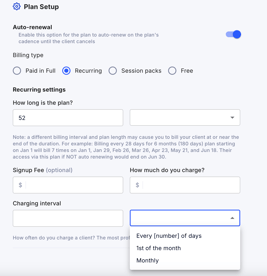
- Recurring: How long is the plan? (days, weeks, months, years) + How much do you charge? + Charging interval (Every X of days, 1st of the month, or monthly)
-
- Session Packs: Session pack price + Number of sessions
- Free: How long is the plan? (days, weeks, months, years)
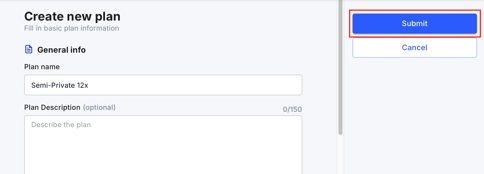
- Click Submit to save.