Adding and managing staff members is an essential part of running your gym. Follow these steps to add staff and assign them the appropriate roles in GymOwners.com.
Step 1: Navigate to Operational Settings
- Log in to your GymOwners.com account.
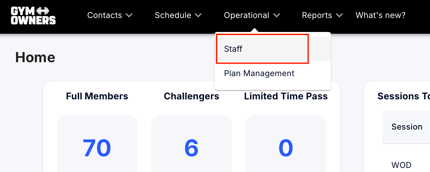
- In the top navigation bar, click on Operational.
- From the dropdown menu, select Staff.
Step 2: Add a New Staff Member
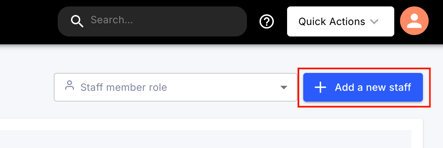
- Once you are on the Staff page, click on the Add a new staff button.
- This will open the Staff Information page, where you can input the staff member’s details.
Step 3: Fill Out Staff Information
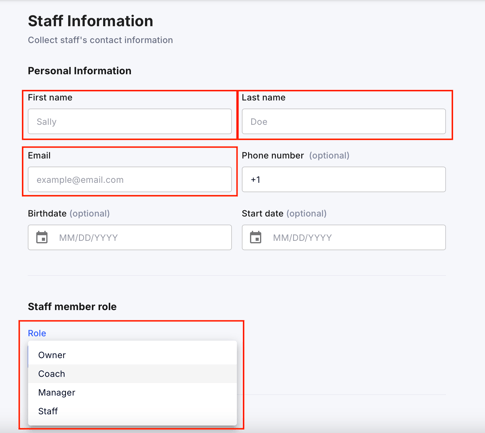
On the Staff Information page, you’ll need to complete the following fields:
- First Name and Last Name: Enter the staff member's full name.
- Email: Provide the staff member's email address. This will be used to send verification and login details.
- Phone Number (optional) : Enter the staff member's phone number.
- Birthdate (optional) : Add the staff member’s birthdate.
- Start Date (optional) : Select the staff member's start date.
Step 4: Assign a Role
- Under Staff Member Role, select the appropriate role for the staff member:
- Owner
- Coach
- Manager
- Staff
- Role Explanation:
- Owners and Managers: These roles have similar access levels, including financial information and overall operational control.
- Coaches and Staff: These roles are more restricted, with limited access to financial data, but they can still manage schedules and client interactions.
Step 5: Verify Email and Set Password
- Once you have filled out the staff member's information and assigned a role, click Create Staff.
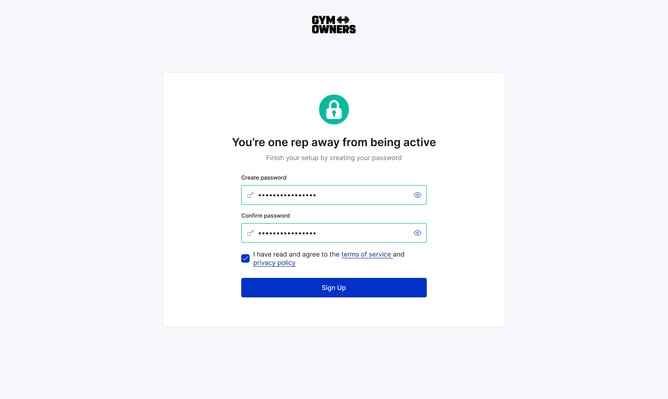
- The staff member will receive a verification email to the address provided. They need to verify their email and set a password.
- After setting their password, they can log in to their GymOwners.com account and start managing their assigned tasks.